Most screenshots leave your phone with something on them you did not mean to share: a phone number in a notification, a name in a chat list, the last four digits of a card. Marka is a small tool for the thirty seconds between taking a screenshot and sending it — brush a mosaic over what should not be seen, point at what should, and send. The image never leaves your device.
iPhone, iPad and Mac · free to use · 2.4 MB · no account, nothing uploaded
2.4 MBdownload
12tools
0uploads, accounts, trackers
1×buy once, use on all three
What it looks like
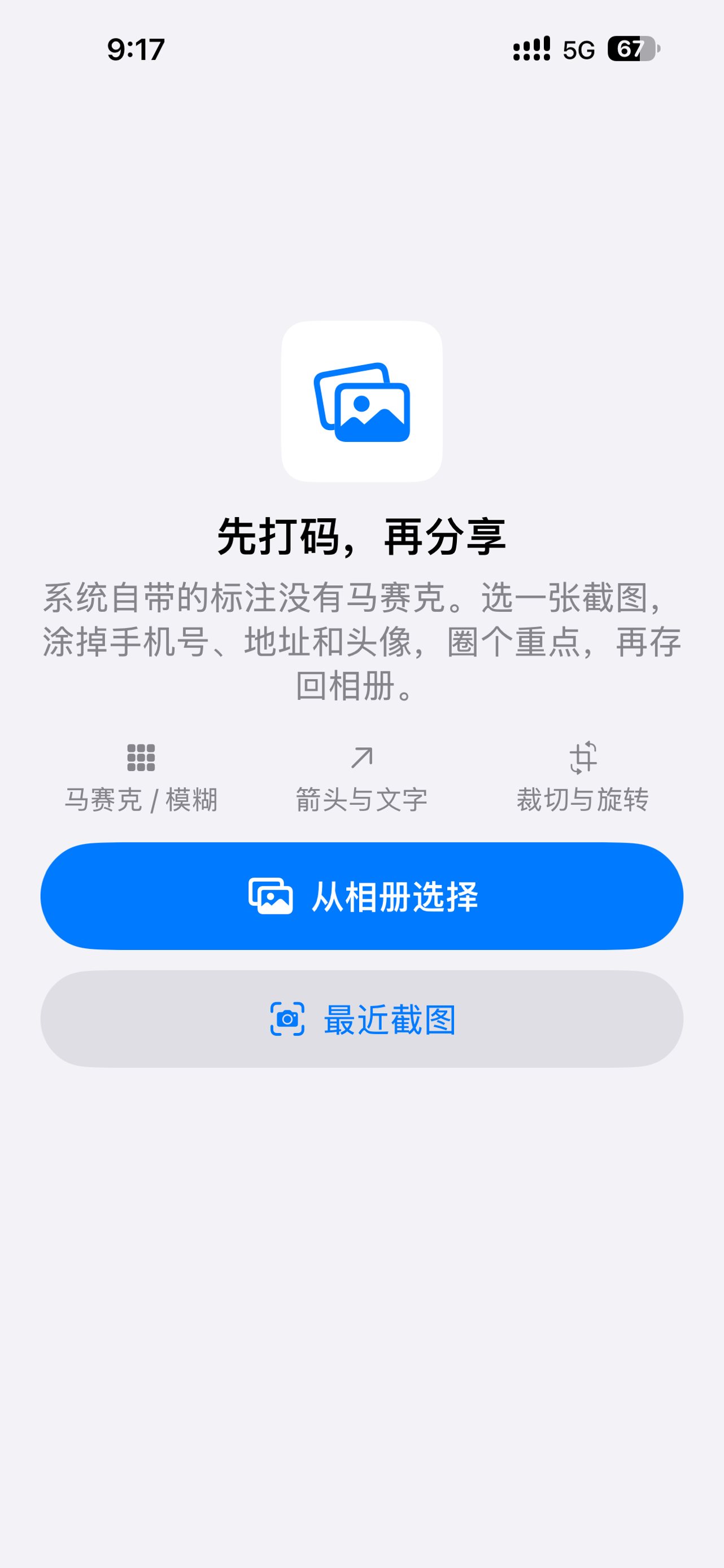
The opening screen is one decision: which screenshot.
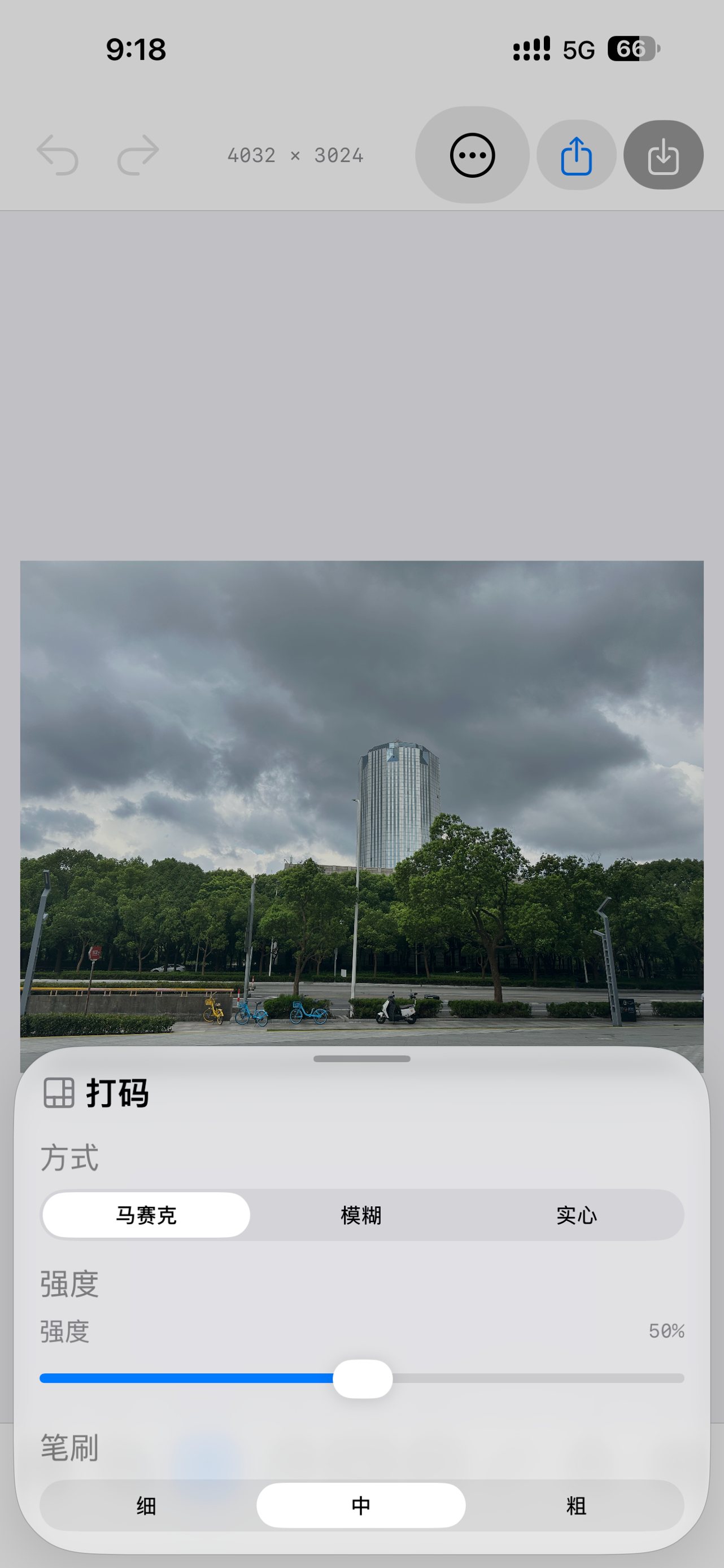
Mosaic is free. Blur and a solid block are Pro.
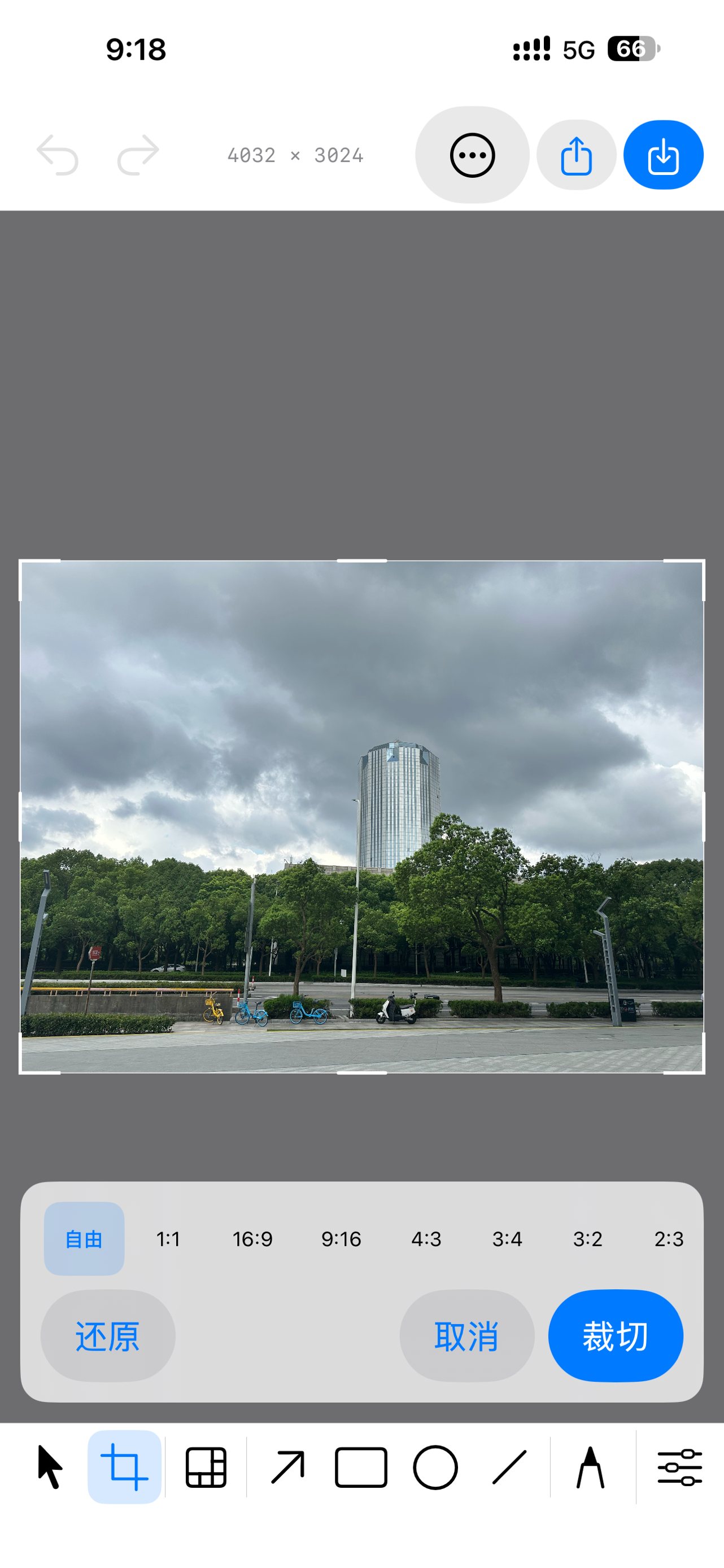
Free crop, or the eight ratios you actually post in.
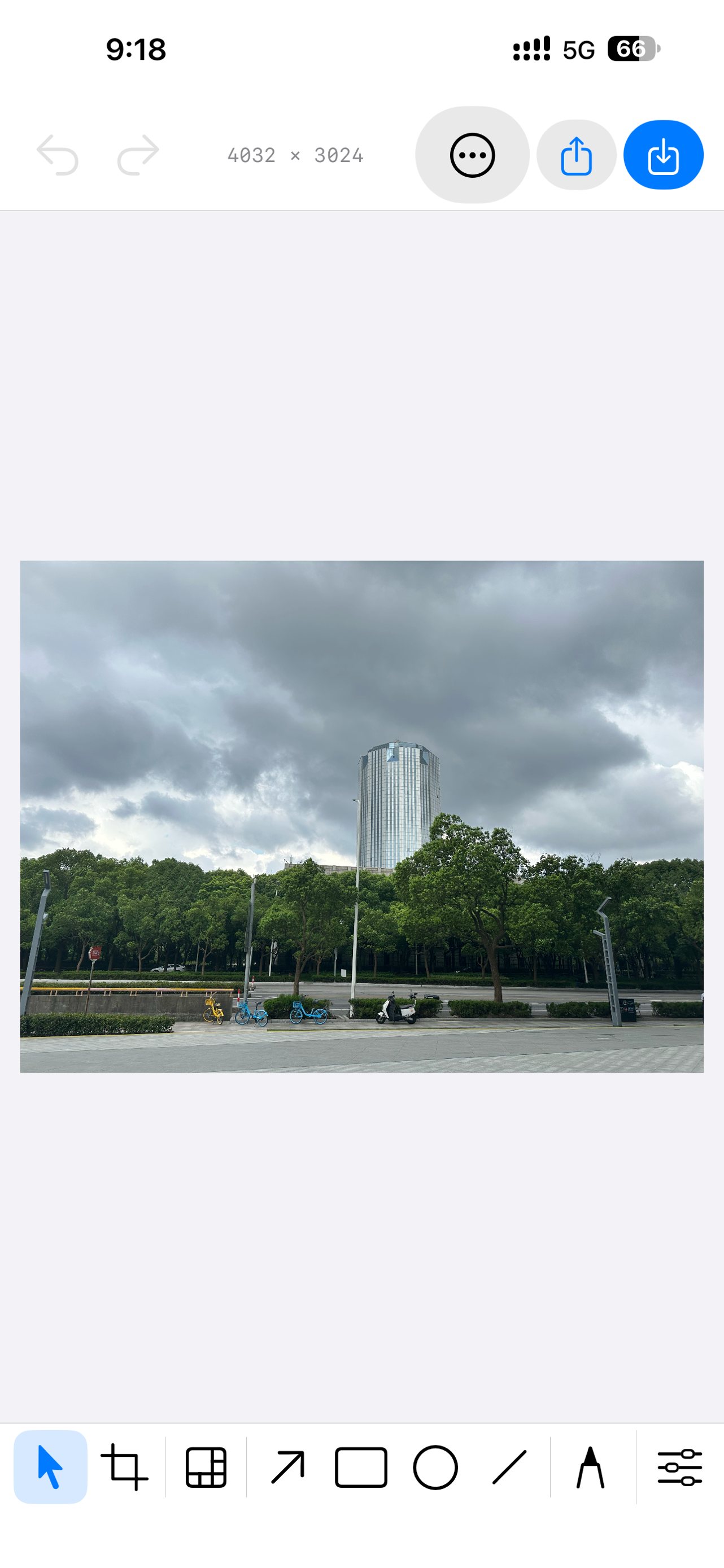
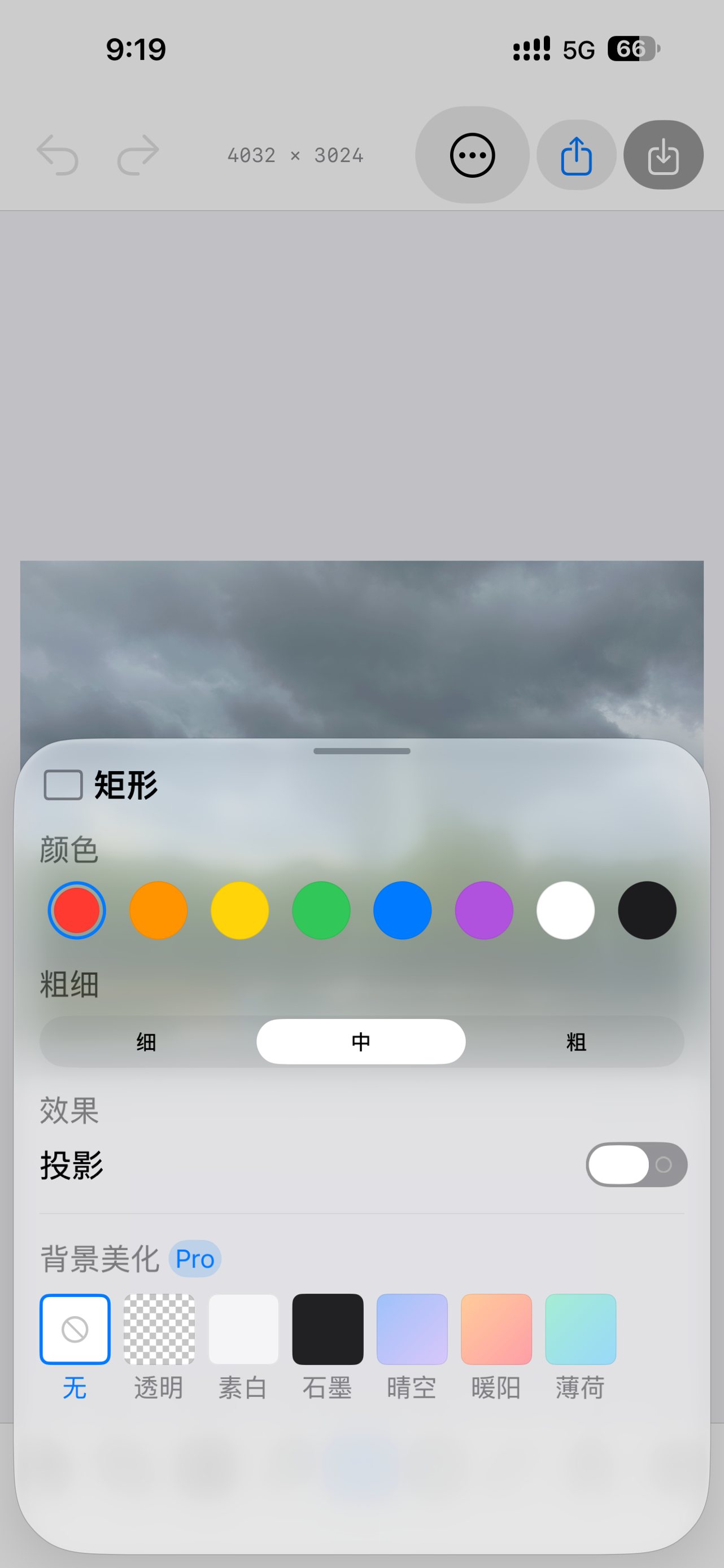
Colour, weight, shadow — and the backdrop, at the end.
What it actually does
Covering things up is the main event
In most markup tools redaction is buried behind a shape tool. Here it is the second button and it works by brushing: drag over the phone number and it is gone, no drawing a box first and then choosing a mode from a menu. Mosaic is in the free tier on purpose, because "cover the number, then send it" is the whole job most people came for. Blur and a solid block are the Pro modes, and a solid block is the one to use when the image is going somewhere you cannot take it back from.
Point at the thing
Arrows, rectangles, ellipses and straight lines, in eight colours and three weights, with an optional drop shadow so a red arrow is still visible over a red button. The weights are ratios of the image's short edge rather than fixed pixel values, which is why a stroke drawn on a 4K screenshot does not come out as a hairline and one drawn on a small image does not swallow it.
A pen and a highlighter
The pen is freehand, for circling something the hard way when a rectangle would be wrong. The highlighter lays a translucent band the way you would over a printed line, so the words underneath stay readable — which is the difference between marking a sentence and deleting it.
Text that stays legible
Type straight onto the image. Text size is deliberately not tied to stroke weight: the size of a label and the thickness of an arrow are two different decisions, and binding them together makes both of them awkward. There are three one-tap sizes and a slider, all expressed as a proportion of the image, so the label is the same relative size on a phone screenshot and on a desktop one.
Numbered steps that renumber themselves
Tap to drop 1, 2, 3 through a set of instructions. Delete the second one and the third becomes the second, because a how-to image that jumps from 1 to 3 reads as a mistake and sends the reader looking for the missing step. Renumbering follows the order you created them in, not which marker happens to sit on top.
Crop, rotate, and the ratios you post in
Drag the frame freely, or lock it to 1:1, 16:9, 9:16, 4:3, 3:4, 3:2 or 2:3 — the shapes a square post, a wide slide and a vertical story actually want. Rotate in quarter turns and flip either way. Crop is free, because trimming a screenshot down to the part that matters is not a premium feature.
Make it presentable at the end
A Pro backdrop puts the image on a plain, graphite or gradient ground with padding, rounded corners and a soft shadow — the treatment that makes a screenshot look deliberate in a slide deck or a release note. The padding, the corner radius and the shadow are all proportions of the image, so the result is the same shape whatever you started from. There is a transparent preset too, for when you need a PNG with nothing behind it.
Stickers, including your own
Emoji and a curated set of SF Symbols, dropped in one tap and stamped repeatedly by tapping the canvas. On Mac you can import your own PNGs — a logo, a signature, a Memoji — up to two hundred of them, each checked to be a real PNG rather than something renamed, and downsampled so your sticker library does not quietly become the largest thing on disk.
On Mac, it can look for what you missed
Marka can scan the open image with Apple's Vision framework and list what looks worth covering: phone numbers, email addresses, card-like number sequences, faces, URLs. It shows candidates with a checkbox each — the found numbers are themselves masked in the list, because a tool for preventing leaks should not print the number back at you — and covers only what you tick. It proposes and never acts on its own, it runs entirely on your Mac, and it will miss things, so it is a second pair of eyes rather than a guarantee. This one is Mac only and it is Pro.
Nothing is uploaded, because there is nowhere to upload it to
Marka has no server, no account and no analytics, and it links against no third-party SDK. The Mac build's sandbox grants exactly three capabilities: run sandboxed, read and write the files you yourself pick, and reach the network — that last one solely so Apple's StoreKit can verify a purchase you made. On iPhone and iPad the only permission requested is add-only access to your photo library, so it can put the finished image back; picking the original goes through Apple's own picker, which hands over one image and nothing else.
The same app on three screens, bought once
iPhone, iPad and Mac share one code base for everything that draws, so an annotation composed on a phone exports pixel-for-pixel the same as one composed on a Mac. It is a single App Store purchase: buy Pro on one device and it is unlocked on the others, signed in with the same Apple Account. The Mac build gives every tool a single-letter shortcut, so your hand never leaves the canvas.
It is 2.4 MB and it forgets
The whole download is 2.4 megabytes, which is roughly one screenshot. Marka is a scratch pad rather than a library: it holds the image you are working on, gives you a hundred levels of undo while you work, and does not keep a copy once you close it. Export or save what you want to keep — that is a deliberate choice, and it is worth knowing before you close a tab full of work.
How it works
There is nothing to set up. The path from screenshot to sent image is four steps, and the order matters more than the tools.
Get the image inOn Mac, take a screenshot to the clipboard and paste it, or open an image file. On iPhone and iPad, pick the screenshot from your photo library — the opening screen offers your most recent one, because that is what you are almost always here for.
Cover before you annotateDo the redaction first, while you are still looking at the image with fresh eyes. Brush a mosaic over the phone number, the address bar, the face in the corner. Do it after you have drawn arrows and you will be reading your own annotations instead of the image underneath them.
Point at one thingOne arrow, or one rectangle, is usually the whole message. If you find yourself drawing four, the honest answer is often two images rather than one crowded one. For instructions, use numbered markers instead: they carry the order, which arrows cannot.
Crop, then sendTrim to the part that matters, pick a ratio if it is going somewhere with a shape, add a backdrop if it is going into a deck. Then copy it to the clipboard, save it back to your photos, or hand it to the share sheet. Nothing was uploaded at any point.
One habit worth forming: look at the finished image once more before you send it, with the annotations in place. On Mac, the sensitive-information scan is a good second pass — but it is a second pass, not the first one.
Where your images actually go
Nowhere. Marka processes every image on the device it is running on. There is no account to make, no server behind the app, and no upload path — not a disabled one, not an optional one. The published privacy policy states it in the same terms: Marka has no backend service to upload images to.
Nothing is collected either: no email address, no device identifier, no usage analytics, no crash-reporting service, no advertising or attribution framework. The app links against no third-party SDK of any kind, which is also why it is 2.4 MB.
The Mac build is sandboxed and asks for three capabilities, no more: run in the sandbox, read and write files you explicitly choose, and make network connections — and that last one exists solely so Apple's StoreKit can check whether you bought Pro. Marka itself makes no network requests. On iPhone and iPad the only permission is add-only access to your photo library, so the finished image can be saved back. Read access is never requested; the picker is Apple's and it hands over the one image you selected.
The "find sensitive information" scan on Mac runs on Apple's built-in Vision framework, on your Mac. Nothing about the image and nothing found in it is sent anywhere, and the results are suggestions with a checkbox each — you decide what is actually covered. It will miss things. Treat it as a second look, not as clearance to stop looking.
Marka is a scratch pad, not a library. It holds the image you are working on and does not keep a copy after you close it. Export or save anything you want to keep.
What costs money
Free, with no time limit and no account: opening an image, cropping, rotating and flipping it, covering things with the mosaic brush, undoing a hundred steps, and getting the result out. That is a complete "cover the number and send it" tool, and it is meant to stay complete.
Marka Pro is a one-time purchase — US$6.99 in the US store at the time of writing, and whatever the App Store shows in your own currency — that unlocks four things: all the annotation tools (arrow, rectangle, ellipse, line, pen, highlighter, text, numbered markers), the blur and solid-block redaction modes, the sticker library, and the backdrop treatment. On Mac it also unlocks the sensitive-information scan.
It is one purchase for all three platforms: buy it on your phone and your Mac unlocks too, signed in with the same Apple Account. Not a subscription, so there is nothing to cancel; if a new device shows Pro as locked, Restore Purchases is in Settings on Mac and on the Pro screen on iPhone and iPad.
What is not here: adverts, an account wall, a trial that expires, or a watermark on your exports.
No, and there is nowhere for them to go. Marka has no server and no account. Everything — the mosaic, the arrows, the export — is computed on your device. The one network connection the app is even capable of making is Apple's StoreKit checking a purchase.
What is free and what is paid?
Free: open an image, crop, rotate, flip, cover things with the mosaic brush, undo, export. Pro: the annotation tools, the blur and solid redaction modes, stickers, the backdrop, and on Mac the sensitive-information scan. Pro is a one-time purchase, not a subscription.
Do I have to buy it twice for iPhone and Mac?
No. It is one App Store listing and one purchase across iPhone, iPad and Mac. Sign in with the same Apple Account and tap Restore Purchases if a device shows it as locked.
What language is the interface in?
Simplified Chinese, at this version. That is worth saying plainly rather than letting you find out after installing. The tools are icons, the work happens on the canvas, and the four things you do — cover, point, crop, export — are recognisable without reading. But if you need a fully localised English interface, this is not that app yet.
Is a mosaic actually safe, or can it be reversed?
A coarse mosaic destroys the pixels underneath it and the export is a flat image, so there is no hidden layer to peel off. What it cannot protect you from is a small block size over something guessable — a six-digit code pixelated lightly can sometimes be narrowed down. For anything that would genuinely hurt, use the solid block, which replaces the area with one colour and leaves nothing to recover.
Can I edit text after I have placed it?
Yes. With the text tool active, tap the text you placed to keep editing it, and press and drag to move it. On Mac you can also switch to the select tool and double-click it.
Where did my image go after I closed the app?
It is gone, by design. Marka is a scratch pad, not a photo library — it holds what you are working on and does not keep a copy afterwards. Save it back to your photos or export it before you leave.
Does the sensitive-information scan catch everything?
No, and it does not claim to. It lists what it found — phone numbers, emails, card-like numbers, faces — and you tick what actually gets covered. Automatic detection misses things, so look over the image yourself before sharing it. The feature is on Mac only.